Gaming Controllers for Productivity: Top Picks Compared
By Kenji Sato • 14th Jun
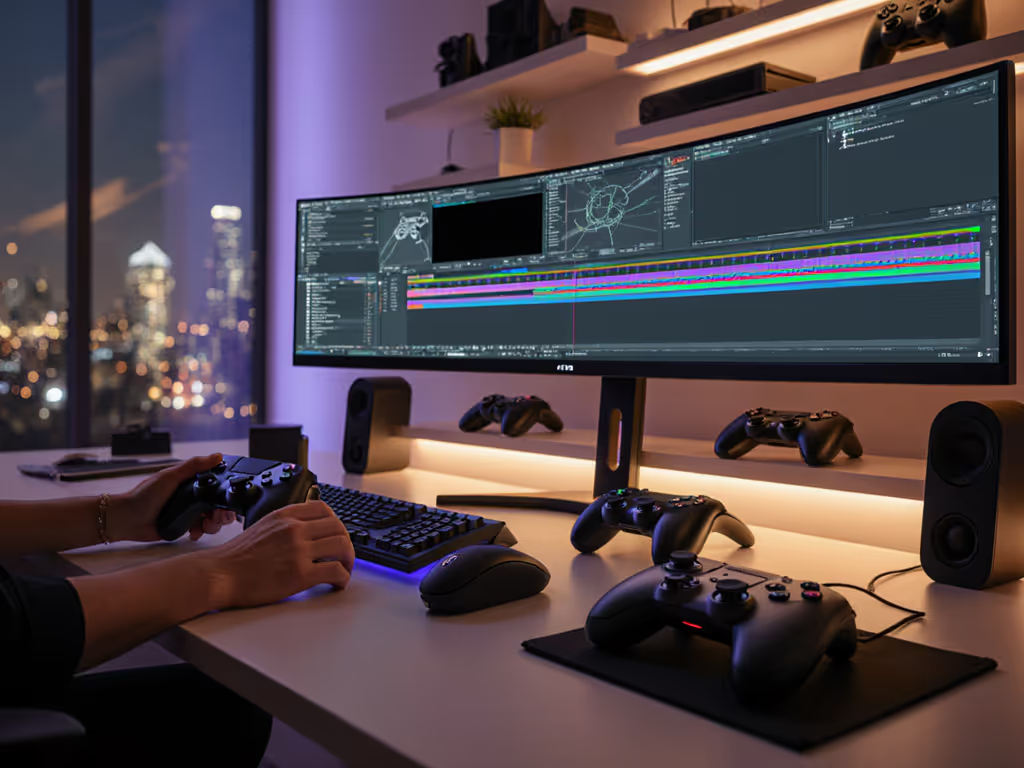
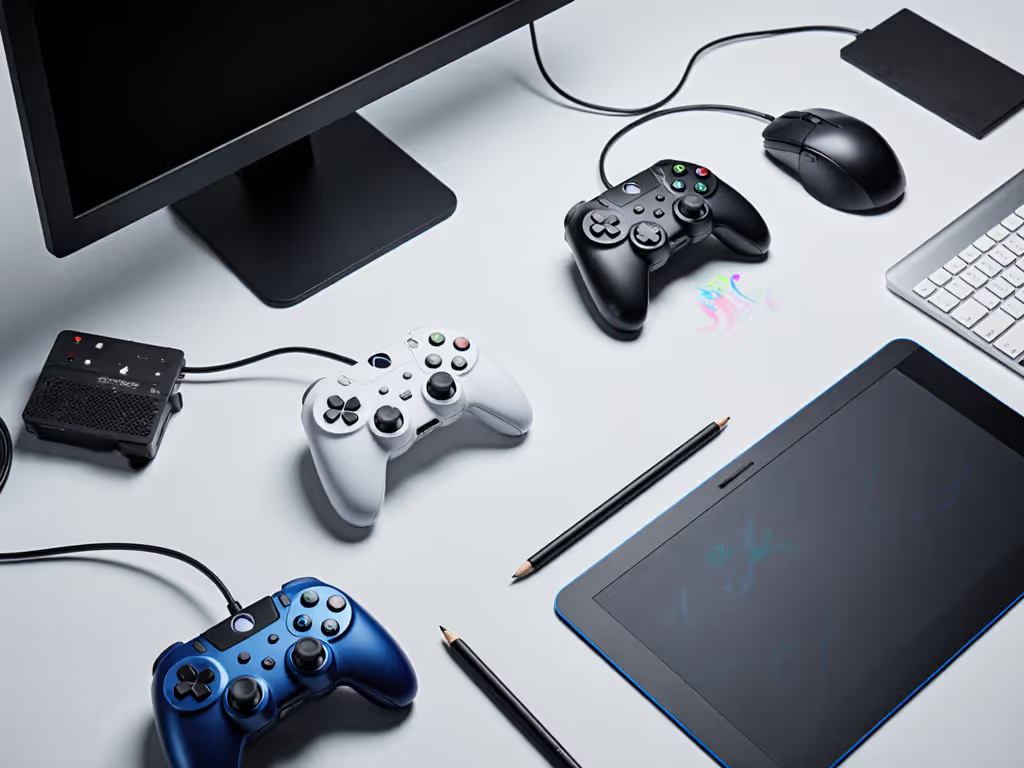
Using controllers for productivity is no longer a gimmick. With the right gaming controller, smart remapping, and a bit of setup time, you can turn a gamepad into a fast, ergonomic command deck for creative apps, CAD, streaming, or everyday PC use.
Below is a data-driven FAQ that compares the best options and shows you how to judge them like a hardware tech, not just a shopper.
FAQ 1: Can a gaming controller really boost productivity?
Yes, if you match the controller to the workflow.
Where controllers shine in productivity
Common high-impact use cases:
- Creative software controllers (video, audio, design)
- Timeline scrub on an analog stick
- Brush size / zoom on triggers
- Layer or tool switching on face buttons and paddles
- Graphic design gamepads
- One hand on pen/tablet, the other on a pad mapped to modifiers (Ctrl, Alt, Shift), undo, zoom, rotate canvas, and tool selection.
- CAD controller usage
- Orbit, pan, zoom, and object rotation mapped to sticks and triggers
- Mode switches (sketch, dimension, assembly) on bumpers or paddles
- General PC / streaming
- Scene switching, mic mute, clip capture, and macro chains on buttons
- Media control and window management for couch or multi-screen setups
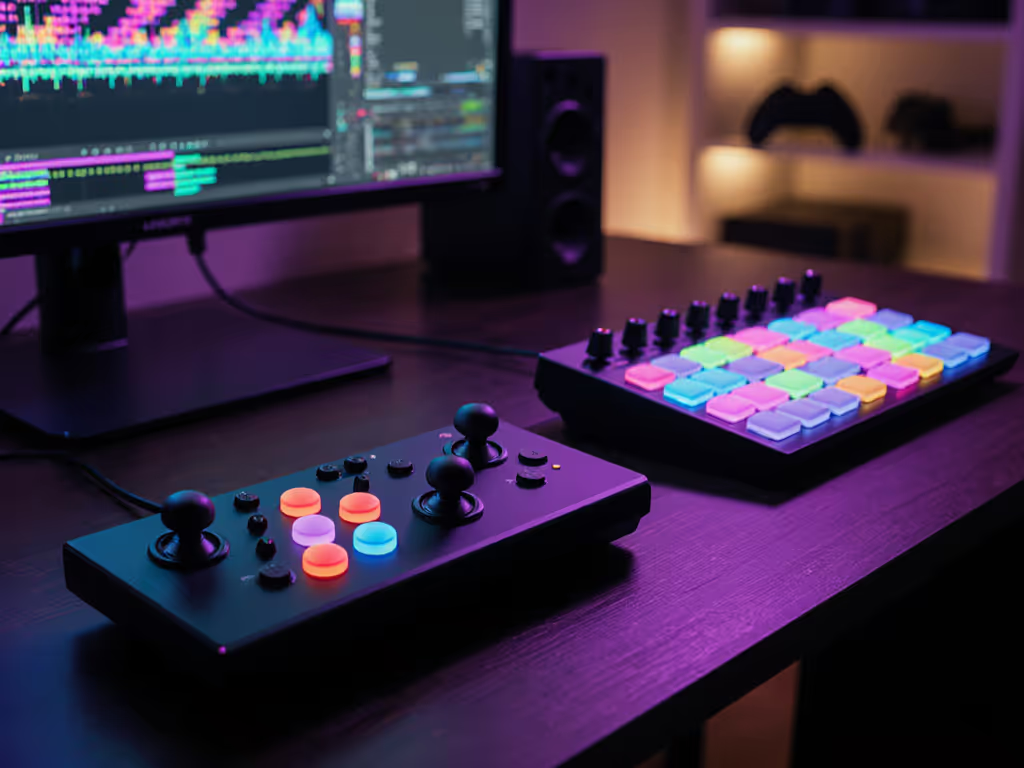
Specialized consoles like Loupedeck or TourBox are built for this, but a good gamepad is cheaper, more flexible, and doubles as a regular controller when you're done working.
Open it carefully, and it will open possibilities.
Once you treat the controller as a programmable input matrix instead of just "move and shoot," it becomes another precision tool on your desk.
FAQ 2: What productivity controller features actually matter?
When you choose controllers for productivity, ignore the marketing and score pads on these traits.
1. Extra buttons and paddles
The more dedicated buttons you have, the fewer multi-key combos you'll need.
- Back paddles / rear buttons are ideal for modifiers (Ctrl, Alt, Shift) and frequently used commands.
- Profile/mode buttons let you swap mappings per app.
Premium pads like the Xbox Elite Series 2 and SCUF/Razer pro-style controllers are praised for their extra inputs and customization options, a fact repeated in multiple controller roundups.[1][3][11]
2. Software remapping and on-board profiles
Good software is often more important than fancy materials.
Look for:
- Per-game or per-app profiles
- On-board memory, so your mappings travel between machines
- Axis curves and deadzone tuning for smooth scrub/zoom behavior
Controllers from 8BitDo and Microsoft score highly here; reviewers consistently highlight their robust configuration tools for PC use.[3][7][13] For a head-to-head look at remapping apps, see our controller customization software comparison.
3. Connectivity and latency
For productivity, low but consistent latency and a stable connection beat absolute minimum lag.
- Wired USB: lowest latency and no battery management; ideal for desk setups and detailed work.[3][11]
- 2.4 GHz dongles: near-wired latency, more reliable than Bluetooth in crowded RF environments.[3][7]
- Bluetooth: fine for general use, but can be spiky under heavy wireless load.
Input lag testing by publications like PC Gamer and Wirecutter routinely finds wired and 2.4 GHz connections outperform Bluetooth in consistency.[3][13] See our wired vs wireless Xbox latency analysis for measured results and setup tips.
4. Ergonomics and fatigue
You're not just playing one match; you might be grading footage or modeling for hours.
- Test grip size and weight; Xbox-style pads fit medium/large hands well, while some find DualSense more comfortable for smaller hands.[3][11]
- Check trigger resistance if you plan to use them as analog sliders; too stiff and they're tiring.
Durability discussions on enthusiast forums often point out that comfortable, balanced pads encourage lighter grip and extend both your hand stamina and the controller's life.[6][14] For deeper guidance on hand health and comfort, see our ergonomic game controllers guide.
5. Durability and maintainability
If you'll use this all day for work and play, stick drift and phantom inputs are more than an annoyance, they're downtime.
- Look for quality stick modules and, where possible, Hall-effect sticks for drift-resistant performance.[5][9]
- Favor controllers with standard screws and easy disassembly over glued shells. That's your future repair path.
User reports and durability guides frequently cite the Xbox Elite Series 2, DualSense, and Switch Pro Controller as strong performers, while also noting that no pad is immune to wear.[1][9]
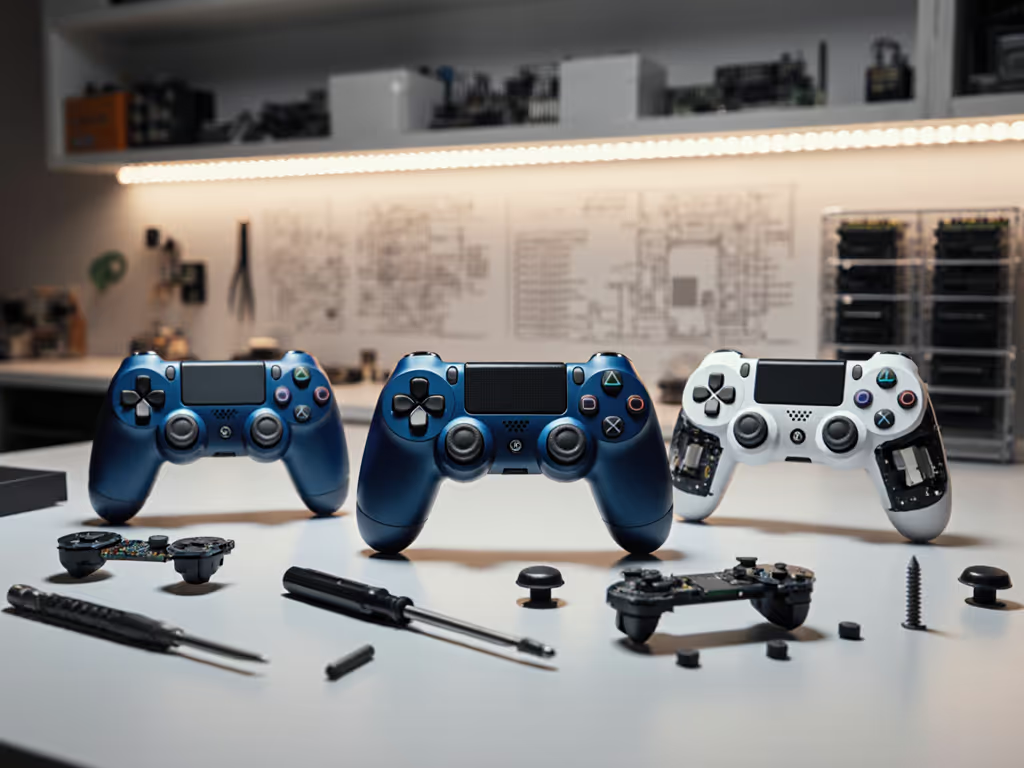
As someone who has revived more "dead" controllers than I've bought new, I care about whether I can open a pad, clean it, and swap parts. Take photos as you go if you ever open one up; it turns a scary teardown into a reversible step-by-step.
FAQ 3: What are the top gaming controllers for productivity, and how do they compare?
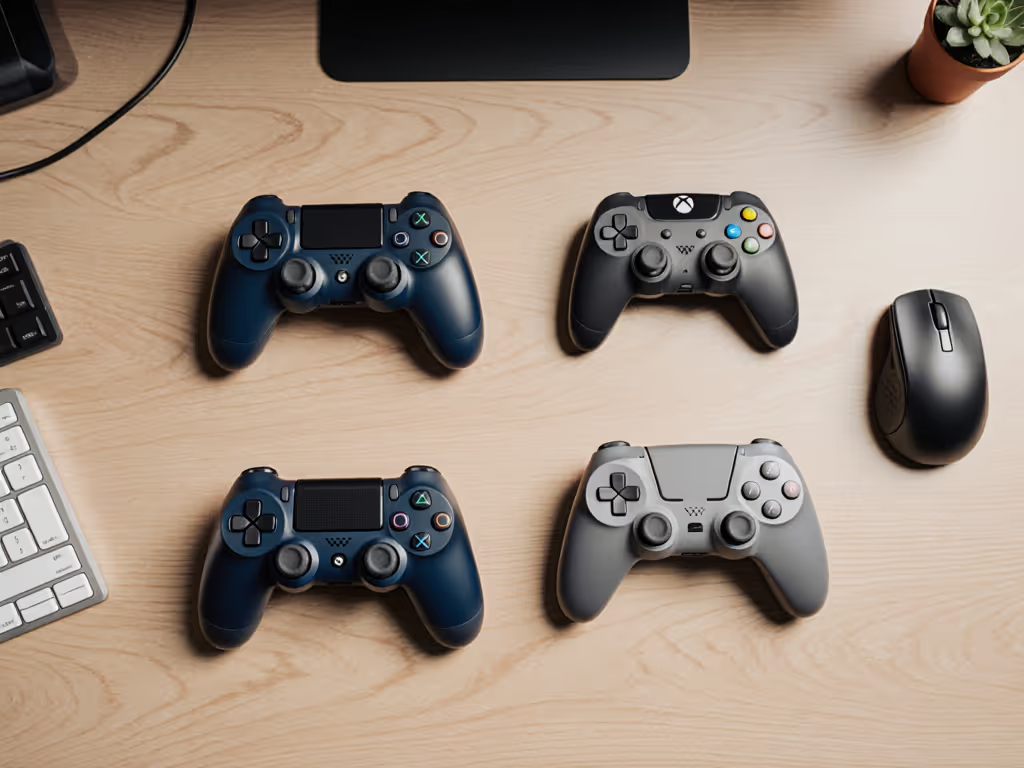
Below is a comparison of controllers that consistently test well and offer strong productivity benefits. This isn't an exhaustive list, but it covers the most practical options.
3.1 Xbox Wireless Controller (current gen): The baseline
Most PC-focused reviews treat the modern Xbox Wireless Controller as the reference point for comfort and compatibility.[3][11][13]
Why it works for productivity
- Native support in Windows; most remap tools detect it cleanly.[3][13]
- Comfortable shape for extended sessions.[3][11]
- Solid build for the price, with widely available spare parts and repair guides.[9]
Limitations
- No back paddles.
- Limited official software compared to premium models (you may rely on third-party remappers).
Best for: You want a reliable, inexpensive starting point and plan to use an external remapper for your creative or CAD profiles.
3.2 Xbox Elite Series 2: Paddles and profiles powerhouse
The Xbox Elite Series 2 is repeatedly highlighted as a top-tier PC controller thanks to its metal paddles, adjustable sticks, and strong software.[1][3][11][13] Not sure which model fits you? Start with our Elite Series 2 vs Core comparison.
Productivity strengths
- Four rear paddles you can dedicate to modifiers or one-press macros.
- Multiple on-board profiles, switchable with a button, ideal for jumping between, say, Premiere, Blender, and your game.[3][13]
- Fine control over stick curves and trigger ranges, useful for scrub or camera speed tuning.[3]
Drawbacks
- Premium price.
- Early batches had durability complaints (bumper and stick issues), though revisions and warranty support improved the situation.[1][9]
Best for: Power users on Windows who want deep customization and lots of extra inputs in one pad and are willing to pay for it.
3.3 Sony DualSense (and DualSense Edge): Touchpad and gyro advantages
The DualSense is often praised for comfort and advanced haptics, while the DualSense Edge adds back buttons and deeper customization.[3][7][11]
Productivity strengths
- Touchpad can act as a mini trackpad in some setups, handy for cursor nudging or gesture-style shortcuts.
- Gyro aiming repurposed as camera/viewport control in 3D apps via software that maps motion to mouse movement.
- Edge model adds rear buttons and configurable profiles.
Drawbacks
- On Windows, you typically need extra software to unlock full features; plug-and-play is better on PlayStation and via Steam Input for supported titles.[3][13]
- Battery life can be shorter than some competitors when all features are active.[7]
Best for: Users who like a lighter-feeling pad, want gyro or touchpad input, and don't mind extra setup on PC.
3.4 8BitDo Pro 2 / Ultimate: Flexible, budget-friendly workhorses
Controllers from 8BitDo, especially the Pro 2 and Ultimate lines, frequently show up in best PC controller lists thanks to multi-platform support and strong software.[3][7][11]
Productivity strengths
- Excellent configuration software with per-profile remaps, macros, and custom stick/trigger curves.[3][7]
- Models with 2.4 GHz dongles offer low-latency, stable connections.
- Two back buttons on many models, perfect for frequently used commands.
- Multi-platform support (PC, Switch, mobile) is useful if you work across several devices.[3][7]
Drawbacks
- Fewer paddles than an Elite.
- Retro-style form factor on some models may not suit everyone's grip.
Best for: Tinkerers and budget-conscious users who want strong software and cross-device flexibility.
3.5 Razer Wolverine V2 and similar wired pro pads: Low-latency macros
Wired pro pads like the Razer Wolverine V2 show up in buying guides as low-latency, macro-friendly options, especially for competitive players on Xbox and PC.[11][12]
Productivity strengths
- Wired-only design for consistent latency and no charging concerns.[11]
- Extra bumper-style buttons and rear triggers that can be mapped to shortcuts.
- Often include macro features in the companion software.
Drawbacks
- Tethered cable may be annoying on a crowded desk.
- Limited platform compatibility compared to more universal pads.[11]
Best for: Desk-bound users who prioritize responsiveness and don't mind a cable, especially if they also play competitive titles.
FAQ 4: How do I actually map a controller to creative or CAD software?
Here's a practical, tool-bench style workflow you can reproduce.
Step 1: Choose your remapping layer
You have three main options:
- Platform tools (e.g., Steam Input) – great if you launch your apps through Steam and want per-title profiles.
- Vendor software (Xbox Accessories, 8BitDo, Razer) – solid for remapping within the controller itself.[3][11]
- Third-party mappers – offer powerful macros and system-wide remaps, but always download from reputable sources and understand what they install.
For any tool that injects input or runs with elevated permissions, treat it like a driver install: read the dialogs, keep backups, and test slowly.
Step 2: Design your layout on paper first
Before clicking anything:
- List your top 8-12 actions in the app: undo, zoom, brush size, orbit, etc.
- Group them by how often you use them.
- Assign:
- Constant-use actions → face buttons and paddles
- Directional controls → sticks and D-pad
- Fine adjustments → triggers or stick tilt
This prevents random, inconsistent layouts.
Step 3: Create a base profile
Start minimal:
- Map four core actions to ABXY / Cross-Circle-Square-Triangle.
- Put undo and save on rear buttons.
- Map pan/zoom/orbit to one stick in your 2D or 3D app.
- Map timeline scrub or brush size to triggers.
Test for 30 minutes. Adjust anything that feels awkward before adding more.
Step 4: Add modes or profiles
If your controller supports profiles or shift layers:
- Profile 1 – Navigation: viewport, zoom, pan, orbit.
- Profile 2 – Editing: brush/tool shortcuts, selection tools, transform.
- Profile 3 – Review: play/pause, markers, next/previous clip, full-screen.
Bind one dedicated button to cycle these. Label them in your software clearly.
Step 5: Save, export, and document
- Export your profiles if the software allows.
- Keep a simple text file or card near your desk listing the layout.
If you ever mod or open the controller to fix drift, take photos as you go (inside and outside). It'll help you reassemble the pad and remember which button was your "emergency undo".

FAQ 5: Is a controller faster than keyboard and mouse for work?
Not across the board, but it can be faster and less fatiguing for specific tasks.
Where controllers win
- Continuous navigation: orbiting a 3D model or scrubbing a timeline can feel smoother and more natural on an analog stick or trigger.
- One-handed workflows: graphic tablet in one hand, controller in the other, with no keyboard reach.
- Repetitive shortcuts: having undo, copy, paste, or common tools under big, easy buttons reduces strain.
Where controllers lose
- Text-heavy work: keyboard still wins for typing and complex shortcuts.
- Pixel-perfect pointer work: a good mouse or pen tablet is still the king for precision selection.
The best setup is usually hybrid: keep keyboard and mouse/pen as primary, use the controller as a dedicated navigation and macro surface.
FAQ 6: How do I choose the right controller for both gaming and productivity?
Use this short decision tree.
-
Primarily PC, want plug-and-play and comfort
- Start with a modern Xbox Wireless Controller.
- Upgrade to Elite Series 2 if you outgrow the button count and want on-board profiles.[3][11][13]
-
You care about cross-device flexibility (PC, Switch, mobile)
- Look at 8BitDo Pro 2 / Ultimate-style controllers with multi-platform support and good software.[3][7]
-
You want touchpad/gyro and often use Steam
- A DualSense or DualSense Edge plus Steam Input can be powerful, especially for camera/viewport control via gyro.[3][11]
-
You need lowest-latency, desk-bound setup
- Consider wired pro pads like the Wolverine V2 or a wired Xbox-style controller.[11][12]
-
You value longevity and repairability
- Favor designs with:
- Standard screws
- Replaceable sticks and buttons
- Large, active modding/repair communities[6][9]
- Favor designs with:
I once grabbed a batch of 'dead' controllers for less than the cost of a new game. With basic tools, documentation, and patience, most of them became daily drivers again. That's why I pay attention to whether a controller can be opened and supported long term.
Avoid counterfeit pads and unknown clones. They're hard to repair, often fail early, and rarely have the software support you need for serious productivity.
Actionable Next Step: Turn one controller into a real tool this week
You don't need to buy anything today to test whether a gaming controller belongs in your workflow.
- Pick one controller you already own (Xbox, DualSense, 8BitDo, anything modern).
- Choose a single app you spend hours in (Premiere, Resolve, Blender, Fusion, Photoshop, your CAD suite).
- Map just 6–8 high-value actions:
- Navigation (pan/zoom/orbit)
- Undo
- Two most-used tools or commands
- Play/pause or confirm/cancel
- Use that setup for two full sessions.
- Note what feels slow or awkward, then adjust.
If it clicks, then decide which of the top pads above aligns with your platform, budget, and repairability expectations. The best controller in this space isn't just the one with the fanciest box, it's the one you can configure, maintain, and grow with as your skills and workflows evolve.
Related Articles